Click Here - RD Recharge Now
The Ultimate Guide to Mantra MFS110 L1 RD Service Recharge & Setup
Introduction: Why the Mantra MFS110 L1 is the New Gold Standard
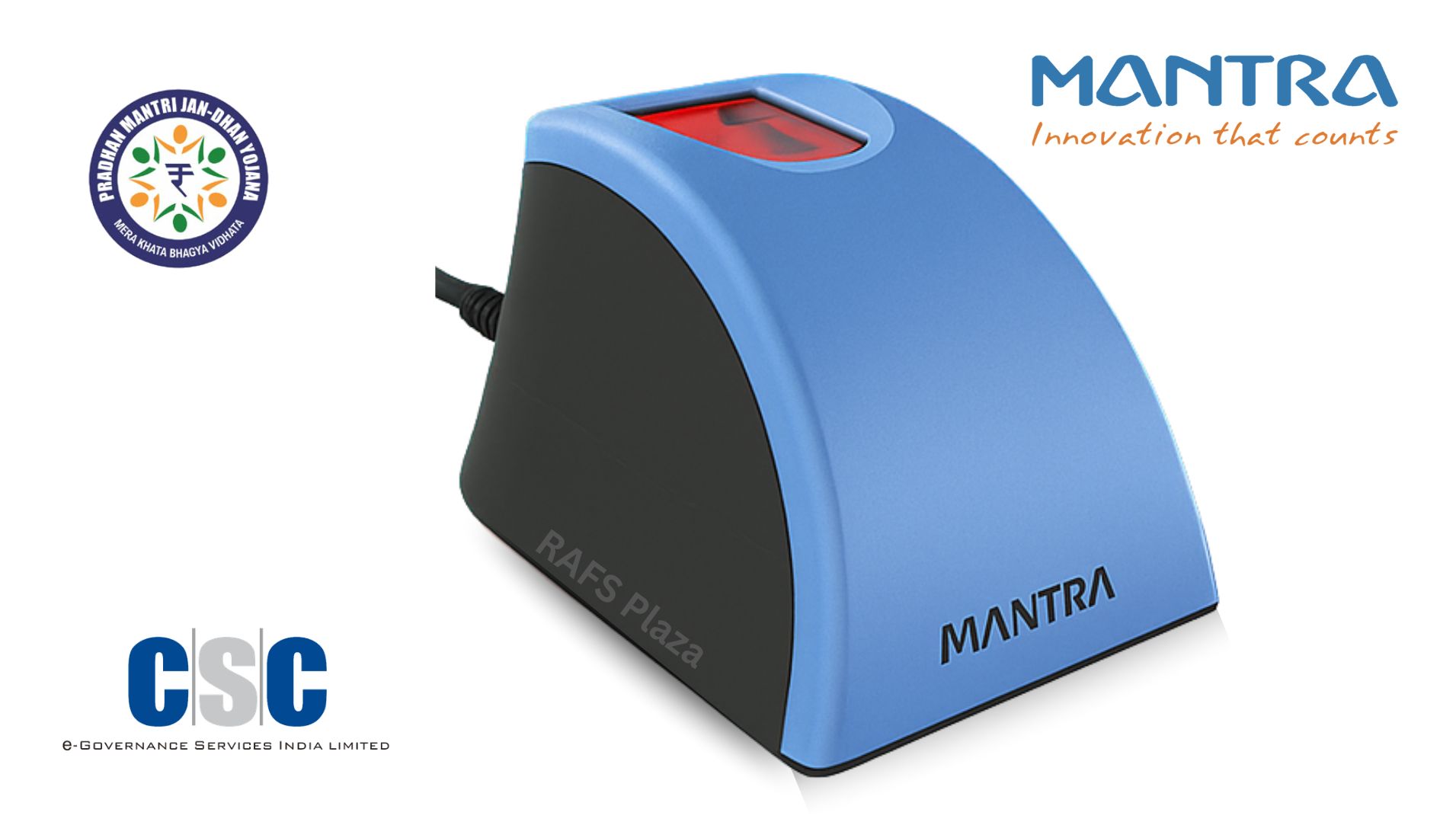
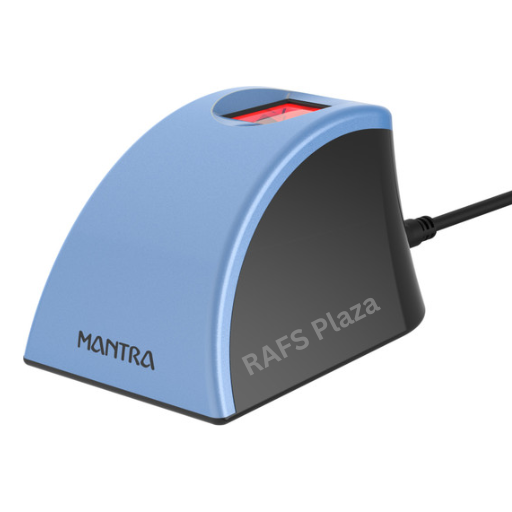
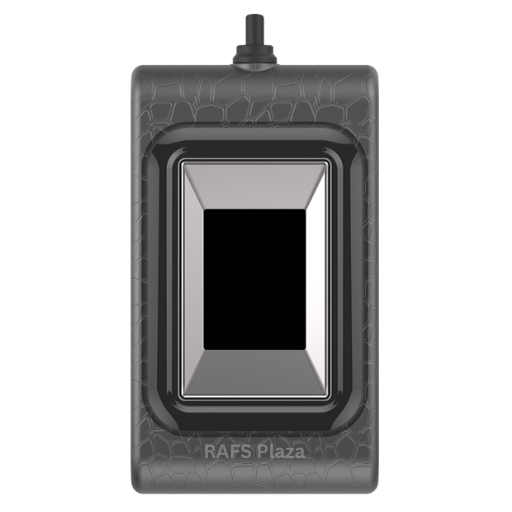
If you are involved in the world of AePS (Aadhaar Enabled Payment System), Jeevan Pramaan, or E-KYC, you’ve likely heard the buzz about "L1 devices." As UIDAI phases out the older L0 technology, the Mantra MFS110 L1 has emerged as the most reliable, secure, and user-friendly biometric scanner on the market.
However, even the best hardware needs a "soul"—and that soul is the RD Service (Registered Device Service). Without an active RD Service subscription, your high-tech scanner is essentially a paperweight. In this guide, we will walk you through everything you need to know about the Mantra MFS110 L1 RD Service recharge, installation, and why this upgrade is mandatory for your business.
1. Understanding the Shift: MFS100 (L0) vs. MFS110 (L1)
Before we jump into the recharge process, it’s vital to understand what you’re paying for.
The L0 to L1 Transition
The UIDAI (Unique Identification Authority of India) recently mandated the shift from Level 0 (L0) to Level 1 (L1) biometric devices.
· L0 Devices: These devices perform encryption within the software/host computer. This leaves a small window for potential security breaches.
· L1 Devices (MFS110): These perform encryption directly within the device hardware. The biometric data is "signed" inside the chip, making it nearly impossible to intercept or spoof.
Pro Tip: If you are still using the older MFS100, you will eventually need to upgrade to the MFS110 L1 to continue providing Aadhaar-based services.
2. Why Does Your Mantra MFS110 Need an RD Service?
RD Service is not just a "subscription fee." It is a security layer required by UIDAI to ensure that:
1. Device Identification: UIDAI knows exactly which device is sending the biometric data.
2. Encryption: Your fingerprint data is encrypted using the latest standards before it ever hits the internet.
3. Security Updates: The service ensures your device firmware is always updated to fight against new hacking methods.
3. How to Perform Mantra MFS110 L1 RD Service Recharge Online
Follow these steps to renew your subscription in under 5 minutes.
Step 1: Locating Your Serial Number
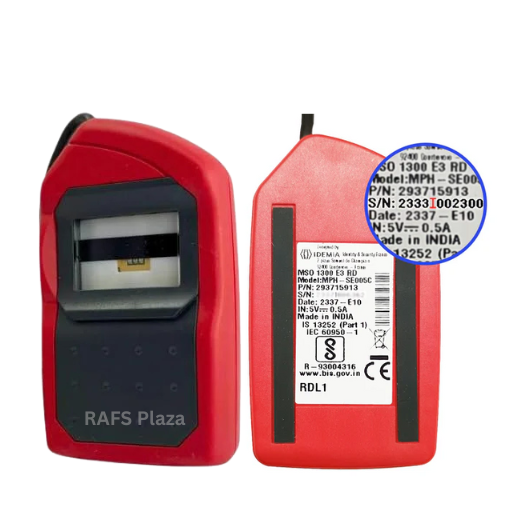
You cannot recharge without your 11-digit Serial Number. You can find this:
· On the sticker at the back of the device.
· By plugging the device into a PC and checking "Device Manager."
· Via the "Mantra RD Service" mobile app.
Step 2: Visiting the Official Portal
Navigate to the official Mantra Servico portal. Avoid third-party websites that charge extra commissions.
Step 3: Filling in the Details
Choose the RD Service option. You will need to provide:
· Customer Name & Mobile Number
· Email Address
· Serial Number (Double-check this!)
· Service Period: Usually 1 year or Lifetime (Note: "Lifetime" usually refers to the device's functional life).
Step 4: Payment
The standard price is typically ₹250 + 18% GST (subject to change). You can pay via UPI, Credit Card, or Net Banking.
Step 5: Confirmation
Once the payment is successful, you will receive an RD Subscription ID. Keep this for your records.
4. Driver Installation Guide: Getting Started
Recharging is only half the battle. You need the correct drivers to make the MFS110 L1 work on Windows or Android.
For Windows Users:
1. Download: Go to the Mantra Download Research section.
2. Drivers: Download the MFS110 Driver and the MFS110 L1 RD Service.
3. Install: Right-click the installer and "Run as Administrator."
4. Restart: Always restart your PC after installation.
5. Test: Plug in the device. You should see a pop-up saying "Framework Ready to Use."
For Android Users:
1. Go to the Google Play Store.
2. Search for "Mantra MFS110 L1 RD Service."
3. Install the app and grant all permissions (GPS, Phone, Storage).
4. Connect your device via OTG (Ensure OTG is enabled in your phone settings).
5. Troubleshooting Common Error Codes
Nothing is more frustrating than an error code when a customer is waiting. Here are the most common ones for the MFS110:
Error Code
Meaning
Solution
Error 1001
Device not registered
Your RD Service has expired. Follow the recharge steps above.
Error 114
Internal Error
Unplug the device, restart the "Mantra RD Service" in Windows Services (services.msc).
Error -1
Device not connected
Check your USB port or OTG cable. Ensure the cable isn't frayed.
Pace Error
Slow Fingerprint Capture
Clean the sensor with a dry microfiber cloth and try again.
6. Maintenance Tips for Longevity
The MFS110 is a rugged device, but it isn't indestructible.
· Cleanliness: Use a piece of clear adhesive tape to lift dust and oil from the sensor. Never use harsh chemicals.
· Storage: Avoid wrapping the cable tightly around the device, as this can break internal wires.
· Software Updates: Occasionally check the Mantra website for firmware updates to ensure compatibility with new Windows versions.
7. Frequently Asked Questions (FAQs)
Q1: Can I use the MFS100 RD Service for MFS110?
No. The L1 (MFS110) and L0 (MFS100) use different RD Service protocols. You must purchase the specific service for your model.
Q2: How long does it take for the recharge to activate?
Typically, it activates within 5 to 30 minutes. If it takes longer, restart your computer or clear the "Mantra" folder in your C:/ drive.
Q3: Is the MFS110 compatible with Windows 11?
Yes, the latest drivers fully support Windows 10 and 11.
Conclusion: Empowering Your Digital Business
The Mantra MFS110 L1 is more than just a scanner; it’s the gateway to financial inclusion in India. By keeping your RD Service updated, you ensure that your business remains compliant with UIDAI standards and that your customers' data remains safe.
Don't wait for your device to stop working mid-transaction. Check your expiry status today and stay ahead of the curve!
.png)